Adding POP email accounts using cPanel
Overview
You have the ability to add extra email accounts to your main account. The number of email accounts you have is controlled by your web host and shown on the main screen of your cPanel interface.
NOTE: If you need the ability to add more email accounts, you will need to contact your web host as only they can provide you with this ability.
Steps
1 To access the Mail Menu, click on the  icon above the word Mail on the main screen of your cPanel interface.
2 Click on the words Add/Remove Accounts to enter MAIL ACCOUNT MAINTENANCE.
3 Click on the words Add Account.
4 Enter the name of the account, the account's password, and the account's quota (amount of disk space the account can use) in their respective blank fields. In the following picture, sample information has been inputted.
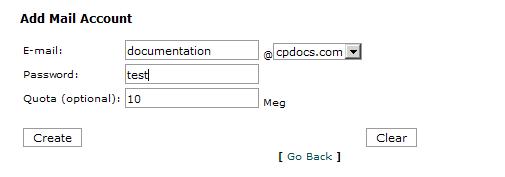
5 Click on the button labelled create to create the account.
NOTE: If the account was created successfully, the following will appear (except it will contain the information you provided in the blank fields rather than the information provided above):
Account Created
The e-mail account documentation@cpdocs.com with the login documentation+cpdocs.com and password test with a quota of 10 megs was successfully created.



