Yes. If you do not have a stand-alone FTP program like CuteFTP you can use cPanel's built in File Manager.
Uploading files to your site Using File Manager
Overview
For your site to show up on the internet, it needs to be present in your site’s public_html directory. You can use the FILE MANAGER to upload files to this directory, and to other directories by using the Upload file(s) option.
Steps
1 To access the FILE MANAGER, click on the  icon above the words File Manager on the main screen of your cPanel interface.
2 Click on the words Upload File(s).
3 Click on a box marked Choose:
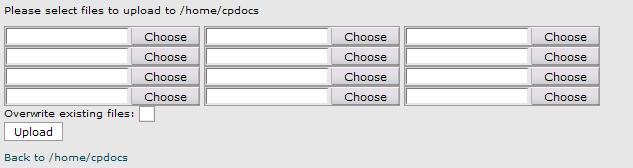
4 Select a file to upload from the pop-up window by clicking on it.
5 Click on the open button and the window will disappear.
6 Repeat steps 3 through 5 to prepare more files to be uploaded.
7 When the list is full or you have no more files to upload, click on Upload. You will be brought back to the FILE MANAGER in the directory you have uploaded the files to.
NOTE: If the upload was successful, the following will appear (except filename.extension will be the name of the file(s) you have uploaded):
Upload Status filename.extension (filename.extension): upload succeeded.



